A well-maintained computer tends to last longer, respond faster, and cause fewer unexpected problems than one that receives no regular attention. The good news is that most of the maintenance that makes a meaningful difference is neither complicated nor time-consuming. This article covers the core practices that help home computers, laptops, and workstations stay in good working order over months and years of regular use.
It is worth noting upfront that no amount of preventive care eliminates the possibility of hardware failure. Components wear out. Storage devices fail. What maintenance does is reduce the likelihood of software-related slowdowns, extend the productive life of aging components, and make it easier to recover quickly when something does go wrong.
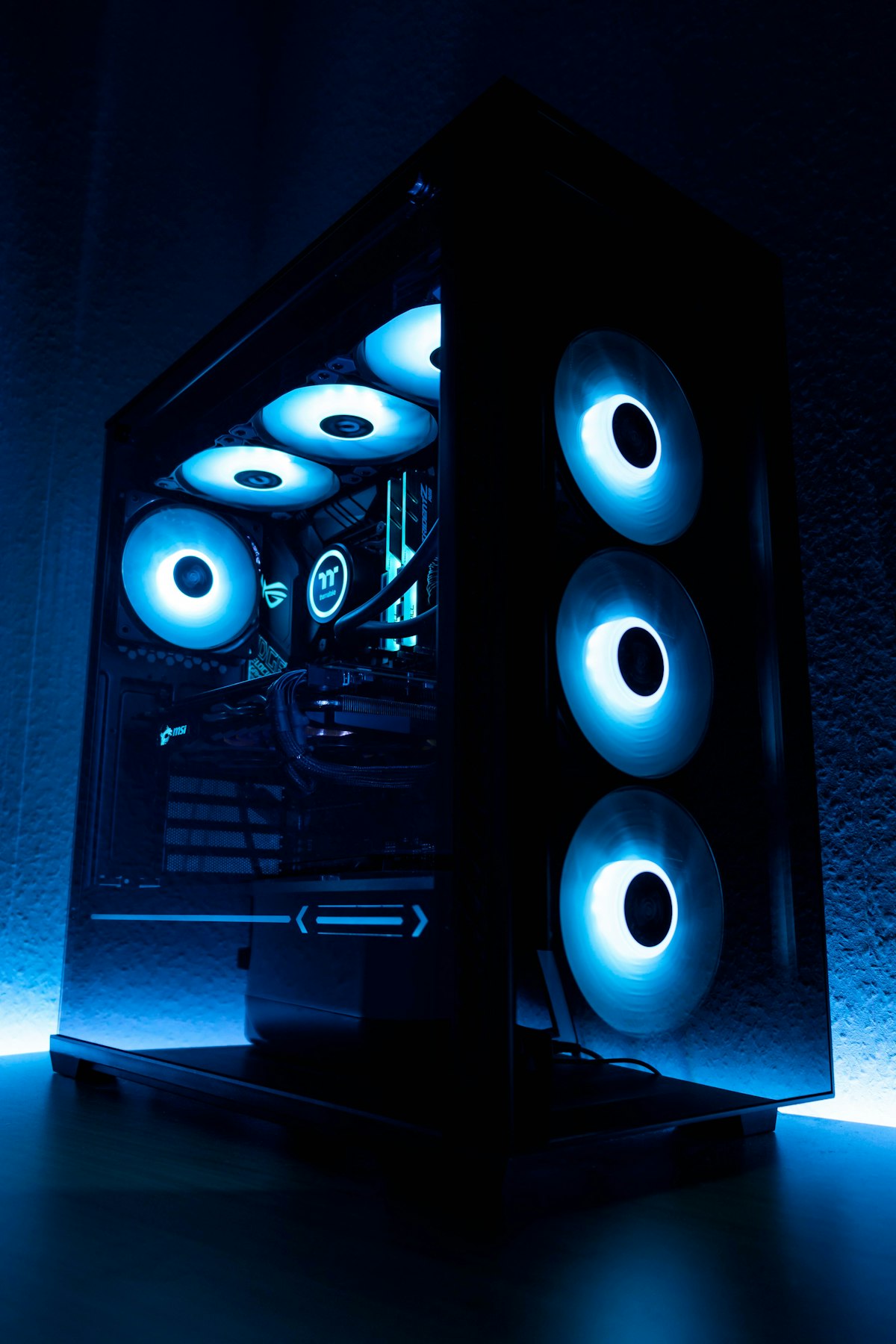
Managing Storage Thoughtfully
Hard drives and solid-state drives both perform more reliably when they have adequate free space. On traditional hard drives, very low free space (below 10–15% of capacity) can significantly slow down read/write operations. On solid-state drives, a similar principle applies — SSDs need available cells for wear leveling and write operations to function efficiently.
Regularly reviewing what is stored on your system is one of the simpler maintenance habits. This includes looking at the Downloads folder, which accumulates files invisibly over time; old application installations that are no longer used; and large media files that may have been duplicated across locations. The Windows Storage Sense tool and similar utilities on macOS can help identify the largest consumers of space.
Emptying the recycle bin regularly is a small step that is easily overlooked — deleted files remain on disk in the recycle bin until it is cleared, which means they continue to consume space without providing any benefit.
As a general guideline, keeping at least 10–15% of your drive capacity free helps the operating system manage temporary files and system operations without resource competition. Consistently operating close to full capacity puts additional stress on the drive and the OS.
Software Hygiene
Software accumulates on computers in ways that are easy to miss. Trial applications get installed and forgotten. Browser extensions are added and then ignored. Toolbars attach themselves to installations of other software when you do not notice the pre-checked option. Each of these has a small footprint, but collectively they can slow system performance and occasionally create security exposure.
A quarterly review of installed programs — checking what is there and whether each item is still used — takes less than fifteen minutes and removes software-side clutter. On Windows, the Apps section of Settings provides an organized list. On macOS, the Applications folder serves the same purpose. Anything that has not been used in the past six months is worth evaluating for removal.
Browser health is also worth attending to periodically. Extensions in particular can run continuously in the background and slow browser performance noticeably. Reviewing and removing extensions you no longer actively use is a quick step with a meaningful effect on browsing speed and responsiveness.
Temporary files are another area worth occasional attention. The operating system and individual applications regularly create temporary files during normal operation, and while most are cleaned up automatically, some accumulate over time. On Windows, the built-in Disk Cleanup utility addresses most of these. Using the "Clean up system files" option within the same tool handles additional categories including Windows Update residuals.
Thermal Care and Physical Maintenance
Heat is one of the primary factors in component aging and reliability. Computers that run consistently at high temperatures experience accelerated wear on processors, graphics cards, storage devices, and other internal components. Managing heat is a meaningful part of extending a computer's practical lifespan.
The most common cause of elevated temperatures in older computers is dust accumulation in the cooling pathways. Fans draw air across heatsinks and through the case, and over time dust builds up on intake vents, fan blades, and heatsink fins. When airflow is restricted, temperatures rise — sometimes significantly. For desktop computers, an annual cleaning of internal components using compressed air and appropriate tools is a practical step. For laptops, the same applies, though access is more involved.
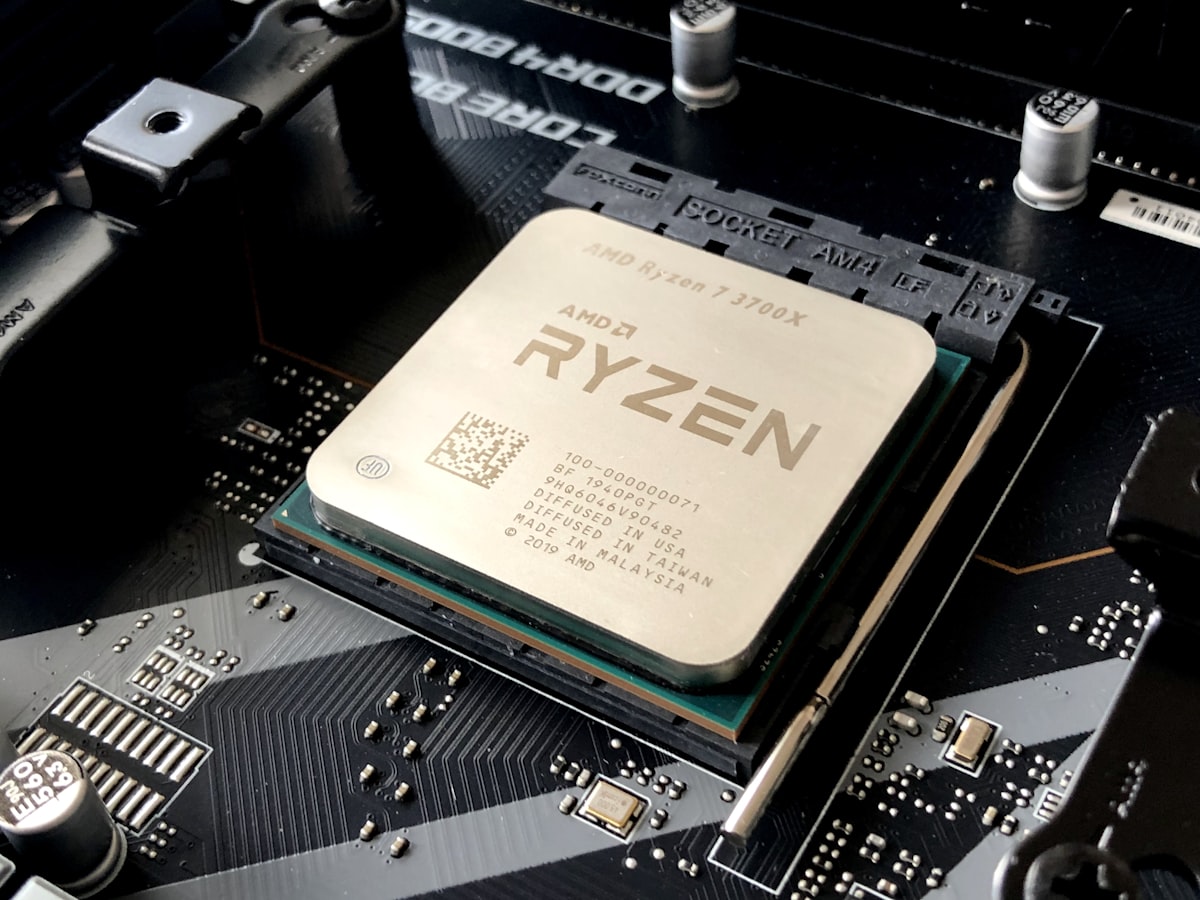
Thermal paste — the compound applied between a processor and its cooling block — also degrades over time, becoming less effective at conducting heat. On computers that are five or more years old, re-applying thermal paste is often worth considering as part of a maintenance service. The difference in operating temperatures after this step can be 10 to 20 degrees Celsius in some cases.
Physical placement matters as well. Computers placed in enclosed spaces, on carpet that blocks intake vents, or in rooms with poor airflow tend to run warmer. Laptops used on soft surfaces like blankets or pillows can experience restricted airflow that pushes temperatures above normal operating ranges during sustained use. Small adjustments to placement can make a noticeable difference.
Staying Current with Updates and Drivers
Operating system updates often carry security patches that address vulnerabilities discovered since the previous version was released. Deferring updates for extended periods — while understandable when they disrupt work — does create exposure to known issues that manufacturers have already resolved. A reasonable approach is to apply updates during a period of low activity rather than disabling them entirely.
Driver updates are somewhat different in character. Driver updates address compatibility with new hardware and software, fix known bugs in specific driver versions, and occasionally improve performance. Graphics drivers in particular are updated regularly and are worth keeping reasonably current if you use graphically intensive applications or play games.
That said, the older advice of always immediately installing the newest driver is no longer universally applicable — some driver versions introduce new issues that were not present in earlier releases. If a system is running stably, waiting a few weeks before updating a critical driver allows time for the community to identify any new problems before you adopt the change.
Managing What Starts with Your Computer
Startup programs are one of the most direct factors affecting how long your computer takes to become usable after power-on. Most applications offer an option during installation to launch themselves at startup — and many default that option to enabled. Over time, the number of programs waiting to load when Windows starts accumulates and extends boot time noticeably.
The Task Manager in Windows (accessed via Ctrl + Shift + Esc) provides a Startup tab that lists every program set to run on boot, along with an impact rating of High, Medium, or Low. Programs with a High startup impact that are not needed immediately are good candidates for disabling. Disabling a startup entry does not uninstall the program — it simply prevents it from launching automatically, and you can still open it manually when needed.
On macOS, the equivalent is found in System Settings under General > Login Items. The principle is the same: review what is set to start automatically and disable entries for applications you do not need immediately upon login.
Maintaining Reliable Backups
Backups occupy a category of their own because they do not improve day-to-day performance — but they are the single most important safeguard against data loss from hardware failure, accidental deletion, or ransomware. The value of a backup only becomes apparent when something goes wrong, at which point its absence is extremely difficult to remedy.
A workable backup strategy typically follows the 3-2-1 principle: three copies of important data, on two different types of media, with one copy stored off-site or in cloud storage. For most home users, this means maintaining local backups and at least one cloud backup running automatically.
Windows includes a built-in backup tool (File History) that can back up designated folders to an external drive automatically. macOS offers Time Machine for the same purpose. Cloud services like OneDrive, Google Drive, or Backblaze provide off-site coverage that protects against local events like theft, fire, or drive failure.
The most important aspect of a backup strategy is that it actually runs. Automatic backups that do not require manual intervention are far more reliable than manual ones. It is also worth periodically verifying that backups are completing successfully — a backup service that has been failing silently provides no protection at all.
Knowing When Professional Attention Is Appropriate
Most of the maintenance described in this article is within the capability of any computer user who is comfortable with basic Windows or macOS settings. However, some situations call for a more thorough examination than is practical to do at home.
If a computer is running noticeably slower after you have addressed the software-side factors — startup programs, unnecessary applications, storage space — the cause may be hardware-related: a drive that is beginning to fail, insufficient RAM for current usage patterns, or thermal issues requiring physical cleaning. These situations benefit from professional diagnosis that can identify the specific cause rather than applying generic fixes.
Similarly, if performance decline has been gradual and persistent over several months despite maintenance efforts, a comprehensive diagnostic session often reveals underlying issues that are not visible through routine checks. Catching a failing drive, for instance, before it fails completely makes the difference between data recovery being straightforward and it being a complicated process with uncertain outcomes.
Regular maintenance reduces the frequency of these situations — it does not eliminate them. The goal is a computer that works reliably, runs at reasonable temperatures, and has its data protected. With consistent attention to the areas covered here, most computers can be kept in useful working order for significantly longer than they would otherwise last.
Have a computer that needs attention?
If you're experiencing performance issues despite regular maintenance, it may be time for a professional diagnostic. We can identify what is actually causing the problem.
Get in Touch